Best Practice Configuration

Recommended setup scenarios for the related apps.

OFeed

Detailed description of each section in the event Settings.

Event Information

  • Relay - check if your event is team based (2 and more legs)
  • Hundredth precision
  • Ranking - calculates Czech ranking points in real time
  • Published - visible/invisible in the list of events on the homepage

Event Password

  • Generate password - if you plan to connect other app with OFeed, you need to generate a password that will be used. Shows QR code for O Checklist connection
  • Regenerate password - use in case of password leak
  • Revoke - invalidates actual password
  • Password expiration - generated password is valid for 7 days

O Checklist connection

Shows QR code that can be used for simple O Checklist connection. Scan the the code and confirm opening provided link.

Visibility

You can keep your event invisible in both the OFeed and MRB event lists. Optimal choice for testing purposes or private events. Everything is working normally even though the event is not visible in the lists.

Can be used for event promotion, e.g. on the website. Share button enables sharing QR code with the start crew, e.g. via chat apps. Print button generates document that can be printed and provided to the start crew.

Danger Zone

  • Delete competitors - deletes all competitors - is useful in case of duplicities appear, classes remain
  • Delete all event data - deletes competitors, classes, relays, password
  • Delete event - completely deletes the entire event

MRB

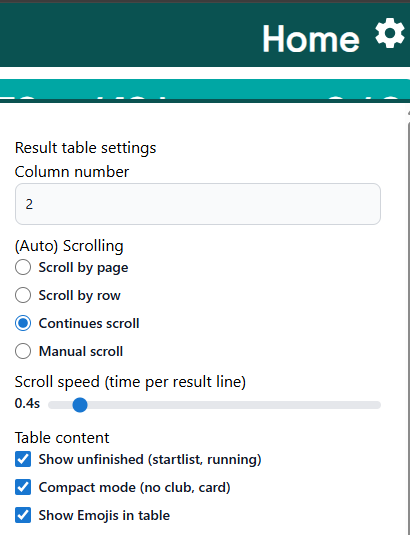
Based on the number of screens and their size adjust number of columns and scroll speed. We like Continues scroll the most.

If you want to save space, use Compact mode. Some browsers are not able to display Emojis so uncheck Show Emoji in table option.

For a clearer view of the results after the first competitors have finished, you can use uncheck Show unfinished option.

O Checklist

App Settings

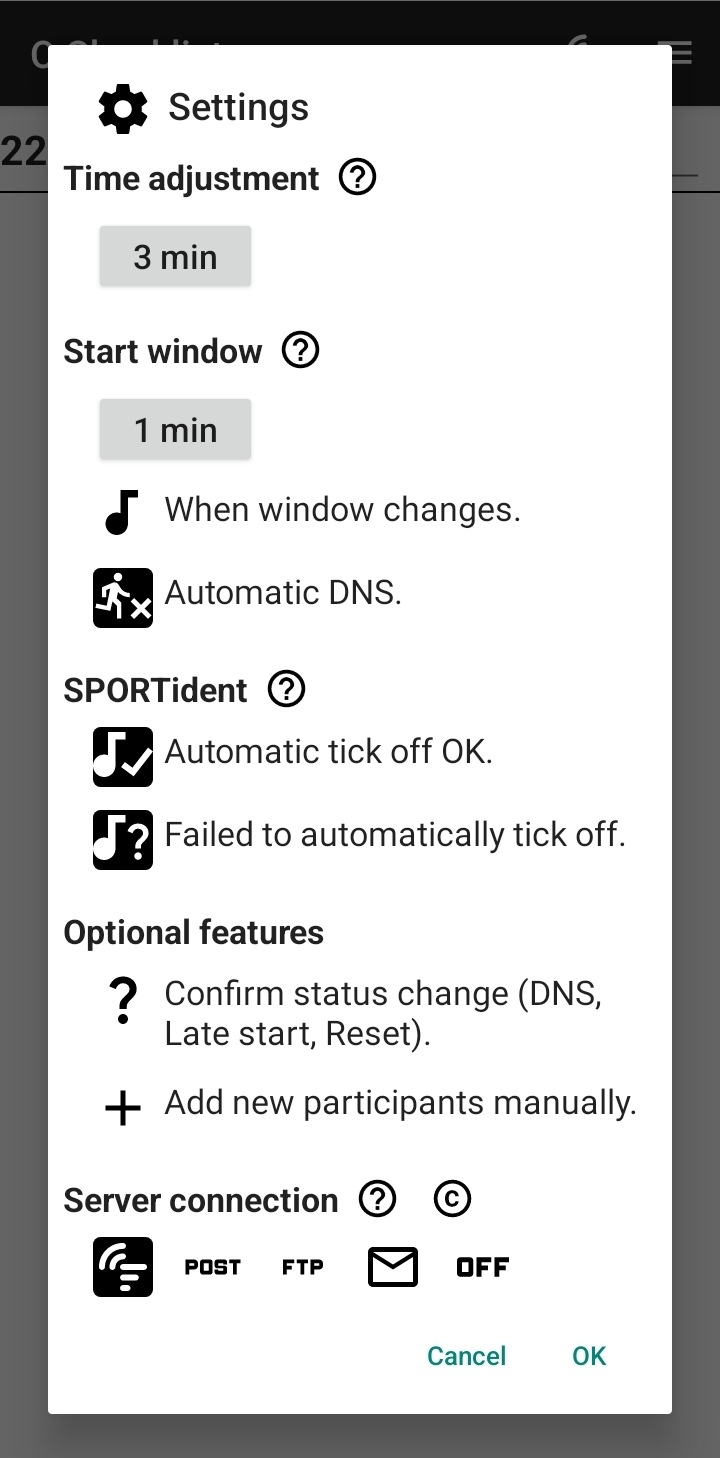
Recommended Settings setup:

  • Time adjustment
    • Individual start (e.g. +3 min prestart)
  • Start window
    • 1 min
    • Automatic DNS
  • SPORTident - turn the sound on
    • Automatic tick off OK
    • Failed to automatically tick off
  • Server connection
    • Use OFeed

Other

tip

Turn Competition mode on, it deactivates all menu items.

QuickEvent

Setup steps

  • Display Services
  • Open Service - settings icon
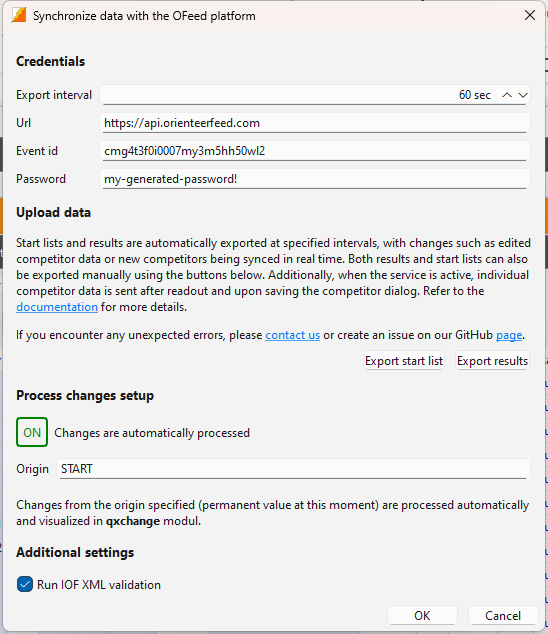
  • Fill in the credentials
  • Turn on changes processing when using O Checklist
  • Start the service - play icon, the red dot goes green

Advanced options

  • Disable IOF XML validation - in case of troubles with upload
  • Manual startlist/results upload via buttons Export startlist/Export results

How does the service works

  • Uploads starlist on startup
  • Every xx sec uploads results
  • Reacts on database events
    • competitor edited
    • competitor added
    • competitor deleted
    • competitor read-out

Known limitations

  • Direct table edits in the Runs are not handled at this moment.
  • Relay xml can not pass iof xml validation -> uncheck checkbox Run IOF XML validation

SI-Droid Connector

Setup steps

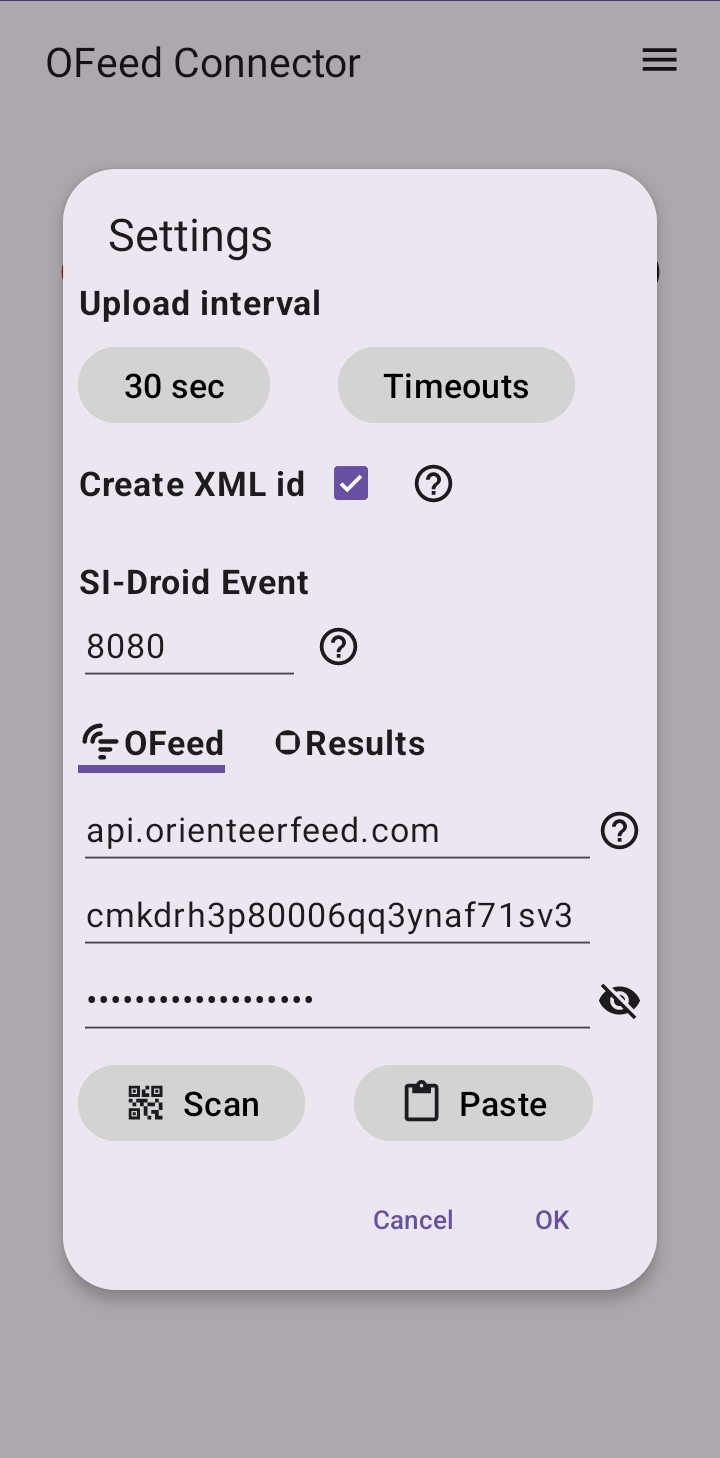
  • Start SI-Droid Event result service
  • Open Settings and:
    • fill in port number of the result service
    • for OFeed scan QR code with credentials or manually enter the credentials
    • for OResults enter api key

Handle ducplcities

  • Use Clear OFeed menu option

Battery usage

The Unrestricted battery setting may resolve some issues that occur while running the app.